May 31, 2025: Dialogue addons
I’m making a game, and dialogue will be a pretty big part of it. I thought about writing my own… but decided it probably would be better to just try out what’s out there.
So I did a bit of googling to see what options were out there.
Dialogic 2
- Googling the first one I found was Dialogic 2, which gave me the impression it was a popular and frequently used solutoin.
- Was surprised that it was in Alpha.
- Also remembered that one of the Godot core contributors was involved with the project.
- The documentation was very barebones and nearly non existant. Couldn’t really understand how to use it.
- Found somewhere in the FAQ how to start my “timeline”; but it was kind of hard to find how to use anything else.
- Seems very heavy and more like a runtime inside Godot, than integrated into Godot.
- I can sorta gleam the eventual goal of the project with what seems to be having some very powerful tooling.
- The reality is just not there today. Too hard to use, no documentation.
- I imagine datalogic 1 for Godot 3 was more well documented and advanced, and this being in alpha is not quite there yet.
Conclusion:
Not going to use this, at least now. I expect it’ll be pretty powerful down the line, but not there yet, and can’t really do much with it’s current documentation.
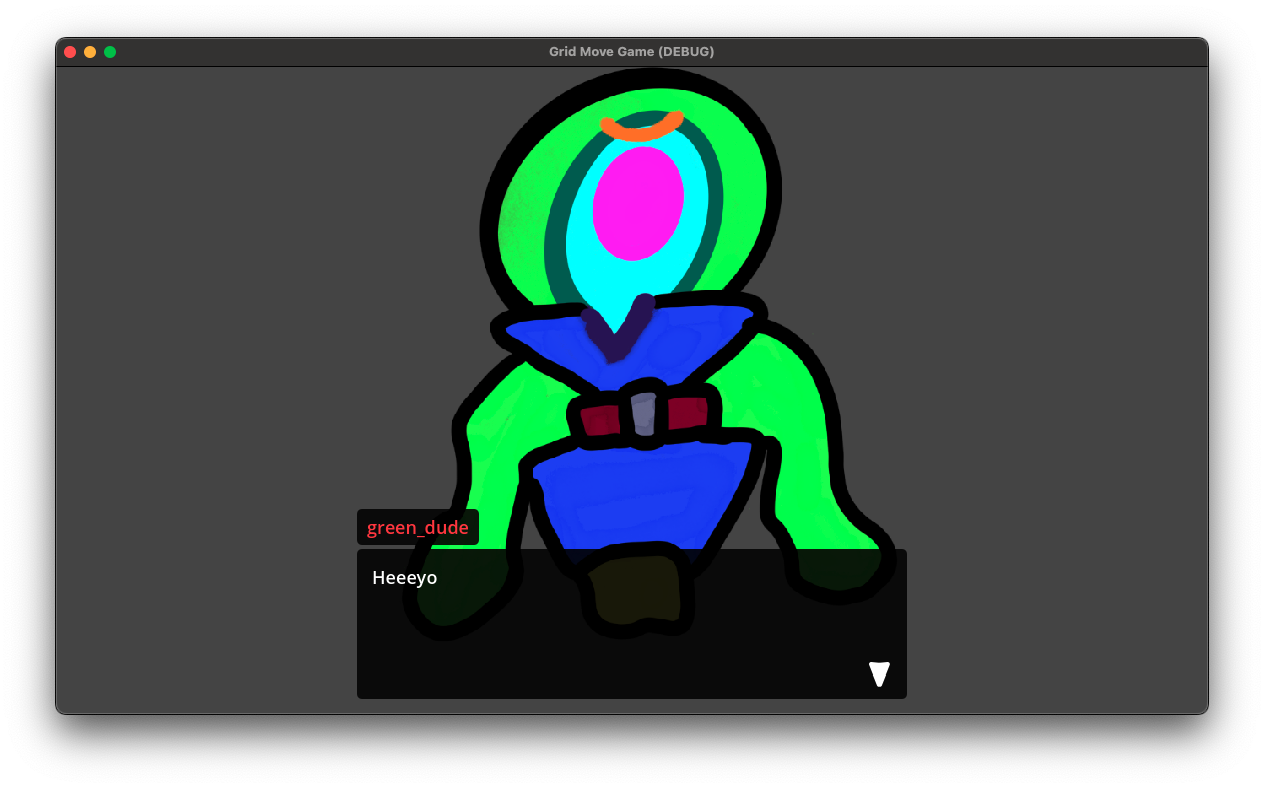
I do like how my guy’s portrait looks like on running the timeline though!
Dialog Manager
- Searched a bit more and found Dialog manager.
- Seems to be having pretty frequent updates.
- Right away it has a few different tutorials easily found.
- The written documentation isn’t as complete as I’d like, but the video tutorials are pretty good.
- EDIT: There is actually written documentation. I just skimmed over it as the video stuff jumped out to my eyes. That’s my bad 100%.
- Although I much prefer text based documentation, there are at least a few good videos covering what I need to know how to use this, and the videos are concise and without fluff.
- Seems much more well integrated into Godot.
- At a glance doesn’t look as
feature heavyas Dialogic 2, but I see that as a plus for me. - The developer also has some sample projects for sale in itch.io pretty affordably so.
- I think that’s a pretty good way for the developer to hopefully be able to get a bit of payment for his work here.
Conclusion:
LOOKS PROMISING! I’m definitely at least trying it out. Preetty sure it’ll be my go to.
May 30, 2025: Found joining solution
Okay, so with a bit of googling, yeah this seems to be something most everyone wants and have implemented their own solution. There is still some stuff about Godot’s threading model and it’s co-routines I don’t understand. But I found an example online which is pretty good and clear. I based off of my solution pretty heavily on it.
Here is my solution based off of that one:
extends RefCounted
class_name AsyncJoiner

# Slightly based on: https://forum.godotengine.org/t/how-can-we-join-multiple-coroutines-await-waits-only-on-a-single-coroutine/2469/2

signal completed

var _is_in_use: bool
var _expected_job_count: int
var _completed_count: int

func wait_for_job_count(new_expected_job_count: int) -> bool:
	if _is_in_use:
		return false
	_is_in_use = true
	_completed_count = 0
	_expected_job_count = new_expected_job_count
	return true

func single_job_done():
	_completed_count = _completed_count + 1
	if _completed_count >= _expected_job_count:
		completed.emit(true)
		_is_in_use = false
Then in my script I do the following:
var _async_joiner: AsyncJoiner

func _ready() -> void:
	_async_joiner = AsyncJoiner.new()

func _move_things(_to_move_array: Array, direction: Vector2):

	var is_joiner_usable = _async_joiner.wait_for_job_count(_to_move_array.size())
	if !is_joiner_usable:
		return

	for curr_to_move in _to_move_array:
		var to_call = func():
			await curr_to_move.async_move_direction(direction)
			_async_joiner.single_job_done()
		to_call.call()

	await _async_joiner.completed
	print("I WATIED FOR EVERYTHING!")
I’ll be honest; I’m not sure if it’s perfect or not. But it works well for my usecase and it leaks NOTHING! I think. Good enough for now.
(UPDATE: DONT DO ANY OF THIS) May 28, 2025: To await or not… that is the question.
Update on May 30, 2025:
I’m not quite sure how and why, but the solution below is really bad.
Specifically it leaks memory for every time it creates a signal object. It creates an infinitely growing list of objects. So no bueno.
Here is the part I can’t explain:
	if should_do_animation:
		var signal_list: Array[SignalContainer] = []
		for curr_node in nodes_to_animate:
			var new_signal = SignalContainer.new()
			signal_list.append(new_signal)
			curr_node.do_animation(new_signal)

		print("MANY: THIS ALWAYS PRINTS A BUNCH")
		for curr_signal in signal_list:
			await curr_signal.signal_field

		print("ONCE: Only prints once: All animations done. FOR REAL!")
The print("MANY... gets printed a whole bunch, but awaits on animation to finish. But even when the animation finishes…. the print("ONCE... only gets printed once!
I don’t follow how that works. Will look into it. For now… don’t do this.
Original post:
So I’m still not too familiar with the threading model of Godot.
I believe it relies on coroutines. But not 100% sure how that wokrs nad how to interact with it beyond single asynchronous operations. So for example, this is simple enough:
fun do_animation():
	$AnimatedSprite2D/AnimationPlayer.play("my_animation")
	print("1) Before animation is finished")
	await $AnimatedSprite2D/AnimationPlayer.animation_finished
	print("2) After animation is finished")
This work simply enough in the context inside this function.
- Start up animation.
- Print
Before.... - Wait for animation to finish.
- Print
After....
This is a bit more challenging when dealing with how to intract with this function itself.
For example, how does this work:
fun _process(delta):
	var nodes_to_animate: Array[NodeWithAnimation] = []

	# Assume Some operations here to add some nodes to `nodes_to_animate`
	if should_do_animation:
		for curr_node in nodes_to_animate:
			curr_node.do_animation()
		print("DONE: All animations done... Right?")
How does this work?
Async: All or Nothing… sort of.
What you probably want here is to kick off all the animations asynchrously, and then wait for all of them to return before the print("DONE...).
But that’s not what’s happening here. What’s happening here is that all the do_animation’s were called, but without await. So it kicked off all the animations without waiting for them. Which is not desired. Unless your animation is the shortest animation in the world, you will likely get the print("DONE...) before any of the animations are done. So what’s the fix?
The thing with async/await in most languages is that it’s all or nothing. The moment you call await, all method calls all the way up the call stack should call the function with await. But no so simple.
This is NOT the fix:
	if should_do_animation:
		for curr_node in nodes_to_animate:
			await curr_node.do_animation()
		print("DONE: All animations done... Right?")
This makes an individual call to a curr_node.do_animation()… and then waits for it to be done. Then it moves to the next one… I think?
Other programming languages have the concept of joining async calls, or futures, or promises, or whatever. Doesn’t seem like GDScript has a native way to support that.
Signal list?
Here is a hacky thing I wrote up that kind of achieves what I want. But feels… iffy. Dunno if I’m doing the right thing. But here we go.
Let’s create a small class that contains a signal:
class SignalContainer:
	signal signal_field(data)
We are going modify the do_animation function to take a signal in as a parameter:
fun do_animation(signal_container: SignalContainer):
	$AnimatedSprite2D/AnimationPlayer.play("my_animation")
	print("1) Before animation is finished")
	await $AnimatedSprite2D/AnimationPlayer.animation_finished
	print("2) After animation is finished")
	signal_container.signal_field.emit()
And on the caller side we will do this:
	if should_do_animation:
		var signal_list: Array[SignalContainer] = []
		for curr_node in nodes_to_animate:
			var new_signal = SignalContainer.new()
			signal_list.append(new_signal)
			curr_node.do_animation(new_signal)

		for curr_signal in signal_list:
			await curr_signal.signal_field

		print("DONE: All animations done. FOR REAL!")
This works… I think?. This creates a new signal before each method call. Send it in to the method and expected the method to emit that signal when it’s done.
Then we iterate through the list of signals and await on each. This works because we need to wait for all of them to trigger before we move forward, so it’s okay to iterate through them without regard to which one we wait for first or last.
I’m concerned this feels a bit waistful. And a lot of scaffolding for what should be a simple operation. In the past when I setup this kind of stuff, it ends up being from ignorance on how to do things “The Godot way ™️”. I feel this could be what’s happening here.
Open questions:
- Is my understanding of Godot’s threading model right?
- Does an operation after an await inside the same function scope happen after the await?
- Is there any downside to wait on a signal, instead of on an await on the async method?
- How does the “async” state get passed across the stack?
- I’m doing some of this in the
_processfunction. Is that a good idea? - Creating a bunch of instances of a class for a very short lived time feels wasteful. Is there a better way to do that?
- Is there a better “Godot native” way to do this?
Anyways. Any tips on this are welcome.
May 15, 2025: Dude… AnimationPLayer is so easy to use.
If you ever want a little bit of animation modifying some properties in a timeline, just use AnimationPlayer. Don’t think about it twice.
It reminds me of Flash animations, where you have a timeline where you can set key frames, with specific values of a properties, and it effectively “Tweens” between the set values. Dunno if that’s the right term or not.
Anyways, I’m pretty sure I achieved similar results by doing a ridiculously large set of interconnected Tweens That was dumb. This is better.
May 14, 2025: Plugins, Node2D and Position
Creating a plugin in Godot is incredibly easy.
This is a lesson learned that I wish I knew when I made PuckFantasy.
For PuckFantasy I ended up creating a level editor into the game code itself instead of as a plugin that worked well with Godot. I thought it’d be the easies way to give my wife a tool to give me levels without her needing to fiddle with code, or Godot itself. Having said that, it ended up complicating my game code’s enough that it introduced hard to debug errors, as I had to rework most of my game. This is the main reason I haven’t released those levels.
If it had been a plugin instead, whatever messyness I made could have been limited to just computers I could manage myself.
Simple setup:
Here is a real quick step by step of creating an plugin (or addon as it’s called in Godot):
- Create an
addonsdirectory in your project’s root. - Create a directory inside that
addonsdirectory for your plugin.- In my case, I called it
move_to_grid
- In my case, I called it
- Create a scene that will effectively be your plugin’s UI.
- Create a script to
preloadyour plugin. This is a script separate from any script you would attach to your plugin scene itself - From there just do whatever you want in the plugin.
There’s lots of stuff you can do, as your plugin will have full access to your editor.
My plugin: Move a Node2D’s position to align with a Sprite Sheet’s position.
Here is my addon’s structure in my project:
res://
└── addons/
    └── move_to_grid/
        ├── move_to_grid.gd
        ├── move_to_grid.tscn
        ├── move_to_grid_script.gd
        └── plugin.cfg
My plugin.cfg which configures the plugin
[plugin]

name="move_to_grid"
description=""
author="OmarF"
version=""
script="move_to_grid.gd"
My move_to_grid_script.gd which I attach to my scene’s root node:
@tool
extends Button

@export
var GRID_HEIGHT: int = 64
var GRID_WIDTH: int = 64

var editor_plugin: EditorPlugin

# Called when the node enters the scene tree for the first time.
func _ready() -> void:
	pass # Replace with function body.


# Called every frame. 'delta' is the elapsed time since the previous frame.
func _on_button_down() -> void:
	print("pressed")
	if editor_plugin == null:
		return
	self.text="Moved Position"
	var selected_node: Array = editor_plugin.get_editor_interface().get_selection().get_selected_nodes()

	for curr in selected_node:
		var curr_obj: Object = curr
		if curr_obj is Node2D:
			var curr_node: Node2D = curr_obj
			if curr_node.is_in_group("gridable"):
				curr_node.position.x = (floor(curr_node.position.x / GRID_WIDTH) * GRID_WIDTH) + (GRID_WIDTH/ 2)
				curr_node.position.y = (floor(curr_node.position.y / GRID_HEIGHT) * GRID_HEIGHT) + (GRID_HEIGHT / 2)

	#print("selected_node: ", selected_node)


func _on_button_up() -> void:
	self.text = "Click to Move"
	pass # Replace with function body.
My move_to_grid.gd which loads the plugin
@tool
extends EditorPlugin

var dock

func _enter_tree():
	print("before preload")
	dock = preload("res://addons/move_to_grid/move_to_grid.tscn").instantiate()
	dock.editor_plugin = self
	add_control_to_dock(DOCK_SLOT_LEFT_UR, dock)

func _exit_tree() -> void:
	remove_control_from_docks(dock)
	dock.free()
And the move_to_grid.tscn which is just a button with _on_button_* functions attached to the expected signals.
Result: Bliss
After this you can load your plugin in the project’s settings, and turn it on.
The end result is a new tab on your left dock, with a HUGE button. If you have a Node2D selected, which has the gridable group, it’ll move it to align with the grid’s position.
Sweeeeeeet alignment.
May 12, 2025: Part Deux
Grid systems
After stepping through that tutorial, I remembered that GDQuest had a tutorial for grid-based gamplay/animations for Godot 3. I wanted to learn how to make thos operations, because there were some details I didn’t recall how they worked.
Specifically, the current tutorial I’m following of his from his Godot course is taking “physics” based operations, but I remember very smooth interactions of a 2D grid-based operation that I wouldn’t be sure how to code up so far. Specifically entering an input, moving based on said input only if the position is available, but providing a smooth and limited movement operation.
I re-found the tuorial here (from 6 years ago!):
The interesting bit is here:
func move_to(target_position):
	set_process(false)
	$AnimationPlayer.play("walk")

	# Move the node to the target cell instantly,
	# and animate the sprite moving from the start to the target cell
	var move_direction = (target_position - position).normalized()

	$Tween.interpolate_property(
		self,"position",
		position,target_position,
		$AnimationPlayer.current_animation_length,
		Tween.TRANS_LINEAR, Tween.EASE_IN)

	$Tween.start()

	# Stop the function execution until the animation finished
	yield($AnimationPlayer, "animation_finished")

	set_process(true)
To summarize it:
- Disable that node’s
_processto stop processing of input impacting that node. - Sets up the animation to start playing out.
- Yields to the animation waiting for it to finish, effectively “waiting” on that before continuing this method.
- Re-enable that node’s
_process.
That’s pretty brilliant. I wasn’t sure how prevent further inputs from making things not be smooth, and I was not aware you could suspend process, nor that you could yield to an animation to finish. In hindsight, I’m fairly certain there were certain things I did for PuckFantasy that I could have done much more cleanly with this technique.
May 12, 2025
Remote scene tree 🧑🍳
TIL About the remote scene tree. Shows you a “live” of the scene tree of your running game. So for example, if you programatically create or free entities, they will show up there.
I wonder if this would have been useful to help me debug some slowness PuckFantasy had in some specific scenarios when I was making the main menu. I think I had accidentally created way more entities than I thought, and would dynamically change them in a bad way. Will use this.
Separation of concern: Split inside a scene the controlled graphics/sprite from the rest
Following previous modules from GDQuest I tried to modify the previous module to have a UI component (a simple label) that would move with the ship/scene. But it would rotate along with it. My solution was inelegant: I would rotate the label in the opposite direction on _process. That created a few problems:
- For a few visible frames, the label would jitter.
- I’m needlessly recalculating on a main
_processloop, maybe unnecessarily.
Diving into the Module 5 of GDQuest the solution is much simpler in hindsight:
Don’t have the ship scene be a Sprite2D at it’s root. Have it be something else (in this case Area2D) have the Sprite2D be a child of the scene’s root node, and the UI component a sibling of the Sprite2D.
May 10, 2025
Setting up logs.
I will do a continuous updates here for my Godot-scapades so that I don’t postpone publishing.